mParivahan: Check RC Status, Pay e-Challan & Vehicle Details
mParivahan is India’s official mobile platform by MoRTH for digital vehicle compliance. Under Section 4 of the IT Act 2000, virtual documents like the Registration Certificate (RC) and Driving License (DL) stored in the app are legally equivalent to physical copies. It enables citizens to verify vehicle details, pay e-challans, and access Vahan and Sarathi services instantly.
Why This Matters for You Today
If you’ve ever been stopped by traffic police and realized your physical wallet is at home, you know the stress of compliance. Carrying physical papers is no longer a necessity. By using the NextGen mParivahan ecosystem, you carry a government-verified, encrypted digital identity that is mandatory for authorities to accept across all Indian states. Whether you are here to check your Vahan RC status, settle an e-challan before a deadline, or initiate a Sarathi driving license application, this guide provides the verified, technical steps to navigate the Ministry of Road Transport and Highways (MoRTH) digital portals without the need for an RTO middleman.
mParivahan Services
Vehicle Related Services
NextGen mParivahan App: Download, Register, and Authenticate
Setting up the NextGen mParivahan app correctly is the foundation for all your digital transport services. In 2026, the app has moved beyond simple information viewing to become a highly secure, Aadhaar-integrated portal. If you don’t follow the official setup, you risk sync errors or using outdated versions that traffic authorities may not accept.
Step-by-Step Setup for Android and iOS
Getting the app on your phone is the first step, but you must ensure you are using the official version to keep your data safe.
- Open your App Store: Android Users: Open the Google Play Store.
- iPhone Users: Open the Apple App Store.
- Search for the App: Type “NextGen mParivahan” in the search bar.
- Identify the Official App: This is crucial. Look for the app with the blue and white wheel logo. Verify that the developer name is National Informatics Centre (NIC eGov).
- Install & Open: Tap Install (or ‘Get’ on iPhone). Once the download finishes, tap Open.
- Select Language: Upon opening, you will be asked to choose your language. Select your preferred language (English, Hindi, etc.) and tap Continue.
- Grant Permissions: The app will ask for permission to access your Location and Camera. Tap “Allow” to ensure you can find nearby RTOs and scan QR codes later.
Registering Your Account & Setting a Secure 6-Digit MPIN
mParivahan security protocol has upgraded. Every user is now required to set a 6-digit MPIN (Mobile Personal Identification Number) for maximum security.
- Initiate Sign-Up: On the home dashboard, tap the Sign In button at the top. Since you are a new user, click the “Sign Up” link at the bottom of the login screen.
- Enter Your Details: Select your State from the dropdown menu.
- Enter your Full Name exactly as it appears on your Aadhaar or Driving License.
- Enter your 10-digit Mobile Number.
- Set 6-Digit MPIN: You will be prompted to create a 6-digit MPIN. Choose a number that is easy for you to remember but hard for others to guess (Avoid “123456” or “111111”). Confirm it by typing it again.
- OTP Verification: Tap Submit. You will instantly receive a One-Time Password (OTP) on your mobile. Enter the 6-digit OTP in the app to verify your identity.
- Complete Registration: Once verified, your account is live! You can now log in anytime using just your mobile number and your 6-digit MPIN.
How to Update Your Mobile Number in the Parivahan Database
This is the “Secret Gap” that most users miss. If the mobile number in the mParivahan app doesn’t match the one linked to your RC/DL at the RTO, your documents will not show up. You must update your records on the official portal first.
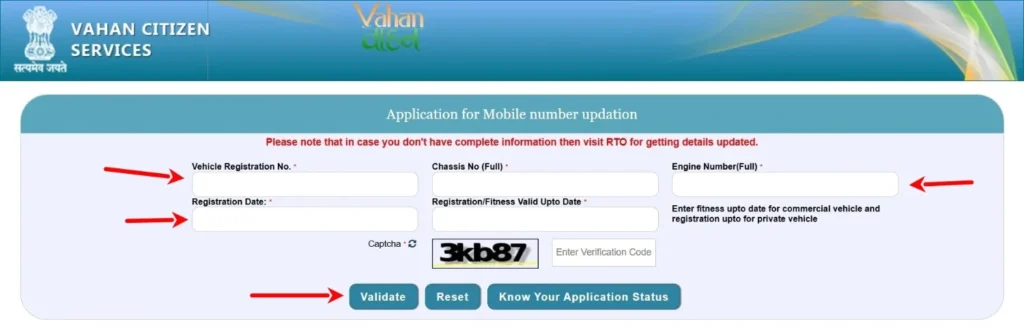
For Vehicle RC (Vahan):
- Visit the official Vahan Mobile Update Portal.
- Select the “Vehicle Registration” tab.
- Enter your Registration Number, Full Chassis Number, and Full Engine Number.
- Authenticate using your Aadhaar Number and the OTP sent to your Aadhaar-linked mobile.
- Enter your New Mobile Number and click Validate.
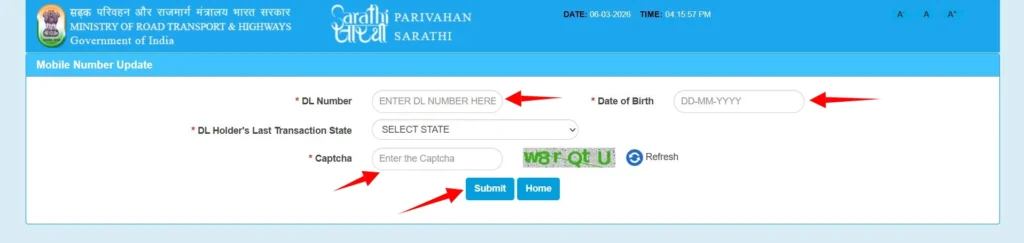
For Driving License (Sarathi):
- Visit the Sarathi Mobile Update Portal.
- Enter your DL Number and Date of Birth.
- Verify your details on the screen.
- Provide your New Mobile Number and authenticate via the OTP.
- Tap Submit to finalize the link.
Why this matters: Once the RTO records are updated (usually takes 24 hours), the mParivahan app will automatically “recognize” your documents, allowing you to fetch your Virtual RC and DL with a single tap.
Your Digital Documents: Virtual RC and DL Legal Validity
The transition from physical paperwork to digital compliance is complete. However, simply having the app installed isn’t enough; you must correctly “fetch” your documents from the central government servers to make them legally valid. A screenshot or a simple photo of your RC is not recognized by law—only a Virtual Document generated within the app holds legal weight.
How to Add and Verify Your Virtual Registration Certificate (RC)
Adding your vehicle to the mParivahan dashboard is a one-time process that creates a permanent digital link to the Vahan 4.0 database.
- Enter Registration Number: On the app home screen, select the “RC” tab and type your vehicle number (e.g., DL01AB1234) without spaces.
- Verification Details: To prove ownership, the app requires two specific details found on your physical smart card:
- The Full Chassis Number.
- The Full Engine Number.
- Authentication: Tap “Add My Vehicle.” You will receive an OTP on the mobile number registered with the RTO. Enter this to finalize the link.
- Data Masking for Security: Once added, you’ll notice that parts of your engine and chassis numbers are hidden (e.g., ABCXXXXX123). This Data Masking is a deliberate security feature designed to prevent identity theft while still allowing authorities to verify the vehicle’s identity.
Fetching Your Virtual Driving License (DL) on Mobile
Your Virtual DL is a real-time record pulled from the Sarathi database. It is more than just a digital copy; it is a live status of your right to drive.
- How to Fetch: Tap the “DL” tab, enter your Driving License number and Date of Birth. Once verified via OTP, your DL will appear on your dashboard.
- The Encrypted QR Code: This is the most critical feature. Every Virtual DL comes with a unique, Encrypted QR Code. When a traffic officer stops you, they use their departmental “e-Challan” app to scan this code.
- Offline Verification: One of the biggest advantages is that this QR code works offline. Even in areas with zero internet connectivity, the officer’s device can decrypt your QR code to verify your license’s authenticity and validity instantly.
Legal Comparison: DigiLocker vs. mParivahan vs. Physical Documents
Under the Motor Vehicles Act 1988 and Section 4 of the IT Act 2000, digital documents are at par with physical ones. Here is how the three formats compare in 2026:
| Feature | Physical Documents | mParivahan App | DigiLocker App |
| Legal Standing | Primary Original | Fully Valid (Statutory) | Fully Valid (Statutory) |
| Offline Access | Always | Yes (via cached QR) | Yes (via Issued Docs) |
| Verification Method | Visual Inspection | Encrypted QR Scan | Encrypted QR Scan |
| Data Updates | Requires Re-printing | Real-time Sync | Periodic Sync |
| Loss Risk | High (Theft/Damage) | Zero (Cloud Backed) | Zero (Cloud Backed) |
| Best Use Case | RTO Submissions | Roadside Inspections | General ID Proof |
Check and Pay e-Challan Online: A Frictionless Guide
Managing traffic penalties has transitioned from a bureaucratic hurdle to a 3-minute digital task. However, with the rise of automated camera enforcement (ANPR systems), many users are hit with “Ghost Challans” they never knew existed. This section provides the definitive official process to check, pay, and—most importantly—verify your transactions to keep your vehicle record clean.
Real-Time Traffic Challan Status Check by Vehicle Number
You do not need to log in or create an account just to see if you have a pending fine. This is the fastest way to check your “Gaadi Number” (Vehicle Number) against the national database.
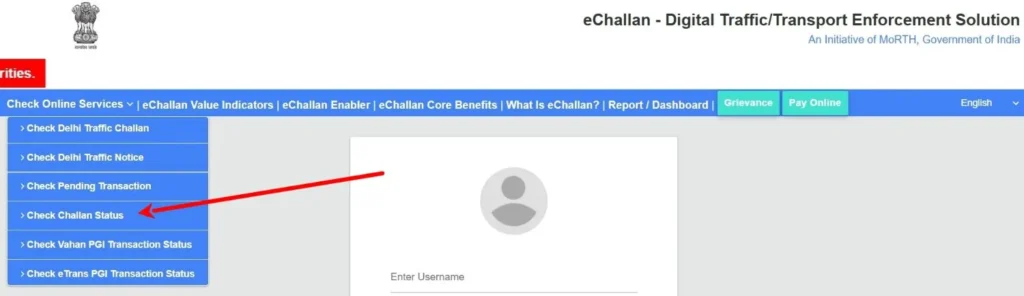
- Visit the Official Portal: Go to the echallan.parivahan.gov.in.
- Select ‘Check Online Services’: From the top menu, hover over “Check Online Services” and click on “Check Challan Status.”
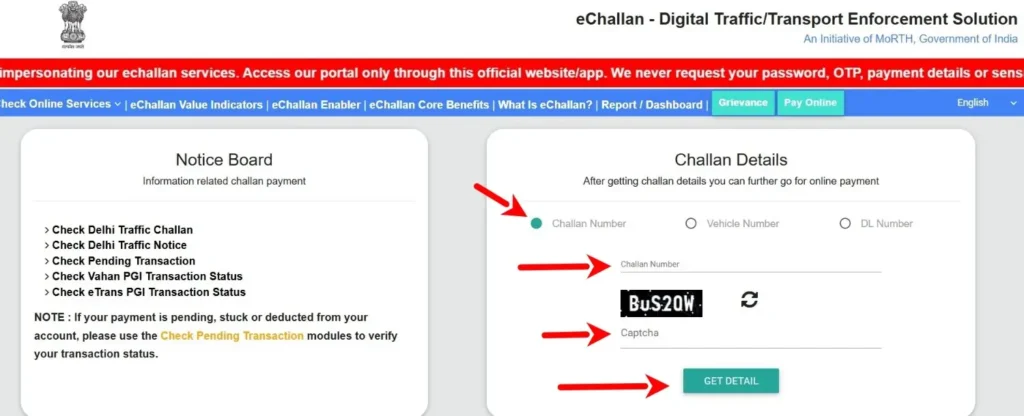
- Enter Vehicle Detail: Select the “Vehicle Number” option. Enter your registration number (e.g., MH12AB1234).
- Verification Step: For security, you must also enter either the last 5 characters of your Chassis Number or the last 5 characters of your Engine Number.
- Get Details: Solve the Captcha and click “Get Detail.”
- Analyze the Results: If a challan exists, the system will display the violation type, the date, the specific RTO/Traffic branch, and the fine amount. You can also click the “Image” icon to see the photographic evidence of the violation.
Secure Online Payment Gateway for Traffic Fines
Once you’ve identified a pending challan, paying it immediately is crucial. Many states enforce a 45-day settlement window, after which the challan is automatically forwarded to a Virtual Court, potentially increasing the fine or leading to an “RTO Blacklist.”
- Payment Steps: Click the “Pay Now” button next to your challan. You will be asked to verify your mobile number via OTP.
- Available Modes: You can pay using UPI (GPay, PhonePe, Paytm), Net Banking, or Debit/Credit Cards. UPI is recommended for instant reflection.
- The “Payment Receipt” (Mandatory): After a successful transaction, the portal will generate an official receipt. Download and save this PDF. It is your only legal proof of settlement if the record isn’t cleared instantly by the local traffic police.
Resolving “Double Verification” and Failed Transaction Issues
One of the biggest frustrations for users is when money is deducted from their bank account, but the challan status remains “Pending.” Competitors often ignore this, leaving users to pay twice. Do not pay a second time.
- The 24-Hour Rule: Sometimes the bank gateway and the Parivahan server have a “handshake lag.” Wait at least 24 hours.
- Use the “Verify Payment” Button: Go back to the “Check Challan Status” page. If your payment failed but the money was taken, you will see a button labeled “Verify” or “Check Pending Transaction.”
- Manual Re-sync: Click this button. The system will manually ping the bank’s server to confirm the transaction. Once confirmed, the status will flip from “Pending” to “Success” without you spending another rupee.
- Refunds: If the transaction was a true failure, the amount is usually auto-refunded to your source account within 7–10 business days.
Comprehensive RTO Services via Vahan (Vehicle) and Sarathi (License) Portals
The digital transformation of the Indian transport sector is anchored by two massive centralized systems: Vahan for all things related to your vehicle and Sarathi for everything related to you as a driver. These portals have moved beyond simple data entry to become sophisticated service hubs that eliminate the need for agents and reduce RTO visits by 90%.
Driving License Services: From Learner’s (LL) to Permanent (DL)
Getting your license is a two-stage journey. The process is stricter but significantly faster thanks to automated testing and private training center integration.
1. The Learner’s License (LL) – Your Entry Point:
- Eligibility: You must be 18 for private vehicles (16 for gearless scooters with parental consent).
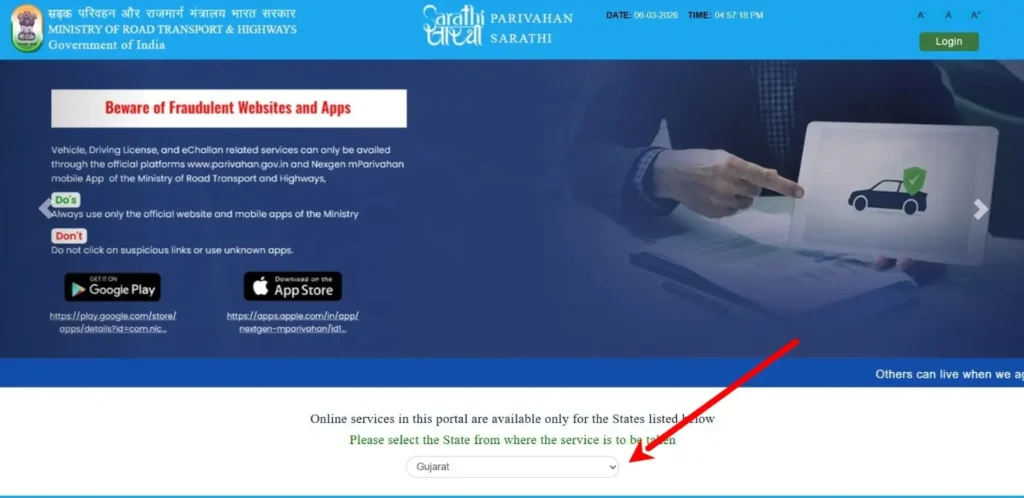
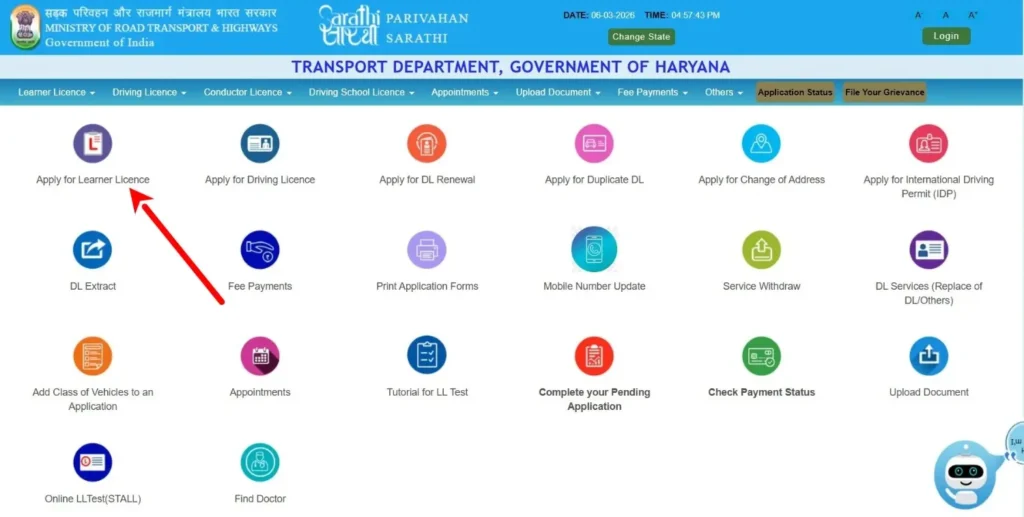
- Application: Visit the Sarathi Portal, select your state, and choose “Apply for Learner License.”
- The Mock Test (RTO Question Bank): Before the real test, use the “Mock Test” feature on the Sarathi site. This is your most valuable resource. It uses the official Question Bank covering road signs, traffic signals, and the Motor Vehicles Act.
- The Test: Many states now allow the LL test to be taken from home via Aadhaar-based face authentication. You no longer need to visit the RTO for this stage.
2. The Permanent Driving License (DL):
- Waiting Period: You can apply for a permanent DL after holding your LL for a minimum of 30 days and before it expires (180 days).
- Slot Booking (The Appointment): Use the “Appointments” menu on Sarathi to book a “DL Test Slot.” You’ll see a calendar—Green slots are available, Red are booked. Pick a time that suits you and print the appointment slip.
- The Test track: You can take your driving test at an Authorized Private Driving School or the RTO. If you pass at a private school, their certificate is digitally uploaded, and your DL is issued without an RTO road test.
Vehicle Registration & Life-Cycle Management
Your vehicle’s “legal life” is managed via the Vahan Portal. Whether it’s a new bike or a 15-year-old car, you must keep the records updated to avoid heavy fines.
- RC Renewal (Form 25): Private vehicles must have their registration renewed after 15 years, and then every 5 years after that. You must submit Form 25 online via Vahan, pay the “Green Tax” (if applicable), and book a slot for a physical fitness inspection of the vehicle at the RTO.
- Duplicate RC (Form 26): If your original RC is lost or stolen, you apply for a duplicate using Form 26. Crucial Step: You must first file a police FIR or “Lost Property” report, as the system will ask for the FIR number and date during the application.
- Transfer of Ownership (Form 29 & 30): When selling a vehicle, two forms are required: Form 29 (Notice of Transfer) and Form 30 (Report of Transfer). Both the seller and buyer must authenticate the transaction via Aadhaar OTP on the Vahan portal to ensure the buyer’s name is legally recorded.
Specialized Services: Fancy Numbers, HSRP, and National Permits
Beyond the basics, the Parivahan ecosystem handles high-security and commercial requirements that are strictly enforced.
- HSRP (High Security Registration Plates): As of 2026, HSRP is mandatory for all vehicles in India, regardless of age. These are tamper-proof aluminum plates with a chromium-based hologram and a unique laser-branded serial number.
- How to Book: If your vehicle doesn’t have them, do not go to a local plate maker—they are illegal. You must book them through the SIAM Portal or state-authorized sites like BookMyHSRP. You pay the fee online, choose a fitment center (usually your car dealer), and get them installed with non-removable snap locks.
- Fancy Number Allocation: If you want a “VIP” number (like 0001 or 786), you must participate in an e-Auction via the Fancy Number Portal. Numbers are divided into categories (Gold, Silver, etc.), each with a different base bidding price.
- National Permits: For commercial trucks and buses operating across state lines, the National Permit is now a seamless online payment. Once paid via Vahan, the permit is instantly downloadable to the driver’s mParivahan app, ensuring no stoppage at state borders for permit verification.
Vahan Status: Verifying Vehicle Owner Details for Second-Hand Buyers
Buying a pre-owned vehicle requires more than a visual inspection and a test drive. With the rise of automated traffic enforcement and stricter banking-transport links, the digital history of a car or bike is its true “health report.” This section acts as your digital shield, helping you use the Vahan Informational Services to uncover hidden liabilities before you sign any paperwork.
How to Check Vehicle Ownership, Insurance, and PUC Validity
To prevent fraud, you must verify that the person selling the vehicle is the actual legal owner and that the vehicle is compliant with current environmental and safety laws.
Step-by-Step Verification Process:
- Visit the Vahan Portal: Navigate to the Know Your Vehicle Details page on the Parivahan Sewa website.
- Account Login: You will need to log in with your mobile number. If you are a first-time user, click “Create Account” to register with your email and phone.
- Enter the “Gaadi Number”: Type the full registration number (e.g., UP14AB1234) and enter the captcha.
- Review the Dashboard: The system will display the Owner Name (partially masked for privacy), the Vehicle Model, and the Fuel Type.
- Check Compliance Dates: Look specifically for:
- Insurance Validity: Ensure the policy is active. An expired insurance status is a major red flag for a seller’s negligence.
- PUCC Validity: Check the Pollution Under Control Certificate expiry. In 2026, driving without a valid PUC can result in an automatic ₹10,000 e-challan.
Fraud Prevention: The Blacklist and Hypothecation Check
Before making a payment, look for two critical status indicators:
- Blacklist Status: If the vehicle is “Blacklisted,” it means there are unresolved serious offenses, pending court cases, or multiple unpaid challans. You will be unable to transfer ownership of a blacklisted vehicle.
- Hypothecation (Bank Loan): If the status shows “Hypothecated,” the vehicle is still under a bank loan. Do not buy the vehicle until the seller provides a No Objection Certificate (NOC) from the bank and completes the “Hypothecation Termination” (Form 35) on the Vahan portal.
Understanding Vahan RC Particulars and Fitness Certificates
The Registration Certificate (RC) Particulars provide a deep-dive into the technical and legal lifespan of the vehicle. One of the most misunderstood aspects is the Fitness Certificate (FC), which differs significantly based on the vehicle category.
| Vehicle Type | Initial Fitness Validity | Renewal Cycle (Post Initial) |
| Private (Non-Transport) | 15 Years (linked to RC) | Every 5 Years |
| Commercial (Transport) | 2 Years (for new vehicles) | Every 1 Year |
Why the “Fitness Expiry” Date Matters:
- For Private Vehicles: Your fitness is usually valid as long as your RC is valid (15 years). However, if you are buying a 14-year-old car, remember that you will soon face a Fitness Inspection and a hefty “Green Tax” to keep the vehicle on the road for another 5 years.
- For Commercial Vehicles: Fitness is the primary document. If a commercial taxi or truck has an expired fitness certificate, it is legally considered “unregistered” on the road, and any insurance claim will be rejected instantly in the event of an accident.
- The 2026 Update: The fitness test includes an Automated Testing Station (ATS) report. Ensure the seller provides the latest digital ATS report to confirm the vehicle’s structural and mechanical integrity.
Common mParivahan Problems & Verified Technical Fixes
Even the most robust government platforms face technical hurdles. As the NextGen mParivahan app handles millions of concurrent requests, users often encounter specific errors that can be solved with a few precise technical adjustments. This section provides the “Expert Fixes” for the most common roadblocks, ensuring you don’t spend hours in an endless login loop.
Fixing “Unable to Verify MPIN” and Login Authentication Errors
This is the most frequent error reported. Usually, it’s not an issue with your password, but a “session conflict” between your phone’s local data and the Parivahan servers.
The Detailed Fix:
- Clear App Cache & Data: Go to your phone’s Settings > Apps > NextGen mParivahan. Select Storage and tap both Clear Cache and Clear Data. This removes corrupted temporary files that cause the authentication loop.
- The Fresh Reinstall: If clearing cache fails, uninstall the app completely. Download the latest version from the Play Store/App Store.
- Check the “Peak Hour” Factor: The Vahan and Sarathi servers often undergo maintenance or face heavy loads between 11:00 AM and 2:00 PM. If you get a “Server Error” or “Verification Failed,” try again during off-peak hours (early morning or after 9:00 PM).
- Network Switching: If you are on a public Wi-Fi or a weak 5G signal, the OTP/MPIN handshake might timeout. Switch to a stable mobile data connection to ensure the encrypted data packets reach the server.
What to do when “Vehicle Details Not Found” (Data Digitization)
Entering your registration number only to see “No Records Found” can be alarming. This usually happens because of Legacy Records—older vehicles whose paper records haven’t been migrated to the digital Vahan 4.0 database.
The “Backlog Entry” Solution:
- Why it happens: Vehicles registered before 2010 (especially in rural RTOs) often exist only in physical ledgers.
- The Fix (Self Backlog Entry): Some states now allow a Self Backlog Entry on the Parivahan portal. You log in, enter your RC details, and upload a scanned copy of your physical RC.
- RTO Visit: If the online option isn’t available for your state, you must visit your local RTO with your original documents. Ask for a “Backlog Entry” in the Vahan system. Once the official approves it (usually takes 48 hours), your vehicle will instantly appear in the mParivahan app.
Managing Aadhaar e-KYC Mismatch and OTP Delays
mParivahan uses Aadhaar-based e-KYC to verify your identity. If there is even a slight mismatch in your name or date of birth between Aadhaar and your RTO records, the system will block your access.
- The Mismatch Fix: Ensure your name on your Driving License matches your Aadhaar exactly. If your DL has a middle name and Aadhaar doesn’t, you must first update your DL details on the Sarathi portal to match your Aadhaar.
- OTP Not Arriving? * Check DND: Ensure you haven’t blocked service SMS via Do Not Disturb (DND) settings on your phone.
- Link Verification: Verify which mobile number is actually linked to your Aadhaar at myaadhaar.uidai.gov.in. Often, users wait for an OTP on their current number while it’s being sent to an old, forgotten number linked to their Aadhaar.
- The 2-Minute Rule: Do not tap “Resend OTP” multiple times. This creates a “queue jam” on the server. Wait a full 120 seconds before requesting a new one.
RTO Codes and Official Transport Portals: State-Wise List
In India, while the Parivahan Sewa portal acts as a centralized umbrella, many administrative tasks—such as specific tax slabs, state-level permits, and local enforcement rules—are managed directly by the respective State Transport Departments. To ensure you are accessing authentic information and not falling for “phishing” sites, it is vital to use the official government-suffix (.gov.in or .nic.in) domains.
Below is the definitive, up-to-date directory of RTO codes and the official websites for every State and Union Territory as of 2026.
Official State Transport Portals (States A-Z)
| State | RTO Code | Official Website Link |
| Andhra Pradesh | AP | aptransport.org |
| Arunachal Pradesh | AR | arunachalpradesh.gov.in |
| Assam | AS | transport.assam.gov.in |
| Bihar | BR | state.bihar.gov.in/transport |
| Chhattisgarh | CG | cgtransport.gov.in |
| Goa | GA | goa.gov.in/transport |
| Gujarat | GJ | cot.gujarat.gov.in |
| Haryana | HR | haryanatransport.gov.in |
| Himachal Pradesh | HP | himachal.nic.in/transport |
| Jharkhand | JH | jhtransport.gov.in |
| Karnataka | KA | transport.karnataka.gov.in |
| Kerala | KL | mvd.kerala.gov.in |
| Madhya Pradesh | MP | transport.mp.gov.in |
| Maharashtra | MH | transport.maharashtra.gov.in |
| Manipur | MN | manipur.gov.in |
| Meghalaya | ML | megtransport.gov.in |
| Mizoram | MZ | transport.mizoram.gov.in |
| Nagaland | NL | mvd.nagaland.gov.in |
| Odisha | OD | odishatransport.gov.in |
| Punjab | PB | punjabtransport.org |
| Rajasthan | RJ | transport.rajasthan.gov.in |
| Sikkim | SK | sikkim.gov.in/transport |
| Tamil Nadu | TN | tnsta.gov.in |
| Telangana | TS | transport.telangana.gov.in |
| Tripura | TR | transport.tripura.gov.in |
| Uttar Pradesh | UP | uptransport.upsdc.gov.in |
| Uttarakhand | UK | transport.uk.gov.in |
| West Bengal | WB | transport.wb.gov.in |
Official Union Territory (UT) Portals
| Union Territory | RTO Code | Official Website Link |
| Andaman & Nicobar | AN | transport.and.nic.in |
| Chandigarh | CH | chdtransport.gov.in |
| Dadra & Nagar Haveli / Daman & Diu | DD/DN | daman.nic.in |
| Delhi (NCT) | DL | transport.delhi.gov.in |
| Jammu & Kashmir | JK | transport.jk.gov.in |
| Ladakh | LA | ladakh.gov.in |
| Lakshadweep | LD | lakshadweep.gov.in |
| Puducherry | PY | transport.py.gov.in |
Why These Official Links Matter for Your Strategy
Aadhaar-based authentication (e-KYC) has become the standard for almost every RTO service. By using these official portals, you ensure that:
- Payment Security: Your road tax and permit fees go directly to the state treasury without middleman commissions.
- Instant Data Sync: Updates made on these portals reflect in your mParivahan app dashboard within 24 to 48 hours.
- Legal Recourse: Official receipts generated here are the only documents recognized as evidence in Virtual Courts or during roadside traffic inspections.
Warning: Always look for the lock icon (HTTPS) in your browser address bar. Government websites in India will always have a domain ending in .gov.in or .nic.in. Avoid sites that ask for your Aadhaar or MPIN but end in .com or .net.
mParivahan Frequently Asked Questions
Is the digital RC and DL on mParivahan valid in all Indian states?
Yes. Under Section 4 of the Information Technology Act, 2000, and subsequent MoRTH advisories, digital documents presented through the mParivahan or DigiLocker apps are legally at par with physical certificates. This mandate applies to all States and Union Territories. Traffic authorities are equipped with e-Challan devices to verify your documents via the encrypted QR code, even if you don’t have an active internet connection at that moment.
Can I show a screenshot or a PDF of my RC/DL to the traffic police?
No. A screenshot or a standard PDF is not a legally valid document. Authorities require you to open the NextGen mParivahan app and show the document within the “Dashboard” or “Issued Documents” section. This ensures the data is being pulled live from the Vahan/Sarathi servers and hasn’t been tampered with.
What is the difference between mParivahan and DigiLocker?
While both are government-approved, mParivahan is a dedicated transport utility app by NIC that offers real-time services like e-challan payments and vehicle owner searches. DigiLocker is a multi-purpose digital repository for all government IDs (PAN, Aadhaar, Marksheets). For roadside vehicle checks, mParivahan is often faster as it focuses specifically on transport entities.
How can I get a duplicate Driving License if I lose my phone or physical card?
If you lose your physical card, you can apply for a Duplicate DL via the Sarathi Portal.
Steps: Select your State > Apply for Duplicate DL > Enter DL Number & DOB.
Note: If your mobile number is linked, you can instantly fetch your Virtual DL on a new phone by logging into the mParivahan app with your 6-digit MPIN. No physical visit is required for the digital version.
My DL has expired; can I still use the mParivahan virtual copy?
The app will show your DL status as “Expired” in red text. While the document is still “valid” as an ID, it does not authorize you to drive. You must initiate the DL Renewal process on the Sarathi portal. Once the RTO approves the renewal, the status in your mParivahan app will automatically flip to “Active” within 24–48 hours.
Can I pay a traffic challan after the 60-day due date?
If a challan remains unpaid after the stipulated period (usually 60 days), it is automatically transferred to the Virtual Court system. At this stage, you cannot pay it via the mParivahan app. You must visit vcourts.gov.in, search for your case using the “Challan Number,” and settle the fine as per the court’s decision.
What happens if I ignore a court summons for an unpaid challan?
Ignoring a virtual court summons can lead to the RTO Blacklisting of your vehicle. This prevents you from selling the vehicle, renewing insurance, or getting a PUC certificate. In extreme cases, a non-bailable warrant can be issued by the magistrate.
Why is my “No Objection Certificate” (NOC) being rejected?
As per the Central Motor Vehicles (Second Amendment) Rules, an NOC for vehicle transfer will not be granted if there are unpaid National Highway toll dues (FASTag arrears) or pending e-challans. You must clear all financial liabilities linked to the vehicle entity before the Vahan system allows a transfer.
Can I update my address in the RC through the mParivahan app?
No, address changes require a formal application through the Vahan Portal (Vehicle Related Services). You will need to upload address proof and, in many states, complete an Aadhaar-based e-KYC. Once the RTO approves the change, the updated address will reflect in your virtual RC in the app.
Why are my vehicle details not appearing even after entering the correct number?
This usually occurs if your Mobile Number is not updated in the RTO database. The app uses your phone number as the primary key to “handshake” with the Vahan servers. If the numbers don’t match, the sync fails. Use the “Update Mobile Number” facility on the Vahan portal to fix this.
Official mParivahan Helpdesk & RTO Contact Information
Navigating government digital portals sometimes requires direct intervention from the technical teams behind the systems. Whether you are facing an “Unexpected Error” during e-challan payment or your virtual document refuses to sync, reaching out to the correct department is the final step in resolving persistent issues.
Below is the verified, centralized contact directory for the Ministry of Road Transport and Highways (MoRTH) digital ecosystem.
Official Support Channels
If you encounter technical glitches, it is recommended to email the specific helpdesk with a screenshot of the error, your registered mobile number, and your Vehicle/DL number for faster resolution.
| Service Area | Support Email ID | Official Contact Number |
| mParivahan App Issues | [email protected] | +91-120-4925505 |
| Vahan (Vehicle) Services | [email protected] | +91-120-4925505 |
| Sarathi (DL) Services | [email protected] | +91-120-4925505 |
| e-Challan Technical Support | [email protected] | +91-120-4925505 |
Support Timings: The unified helpline (+91-120-4925505) is typically active from 06:00 AM to 10:00 PM daily to assist citizens across all time zones in India.
Escalation & Higher Authorities
For policy-level grievances or website-related feedback that remains unresolved by the primary helpdesk, you may contact the Web Information Manager at the National Informatics Centre (NIC).
- Web Information Manager: [email protected]
- Official Website: parivahan.gov.in